
 Nitrox AnalyserBluetooth Label Printingwww.nitroxanalyser.com
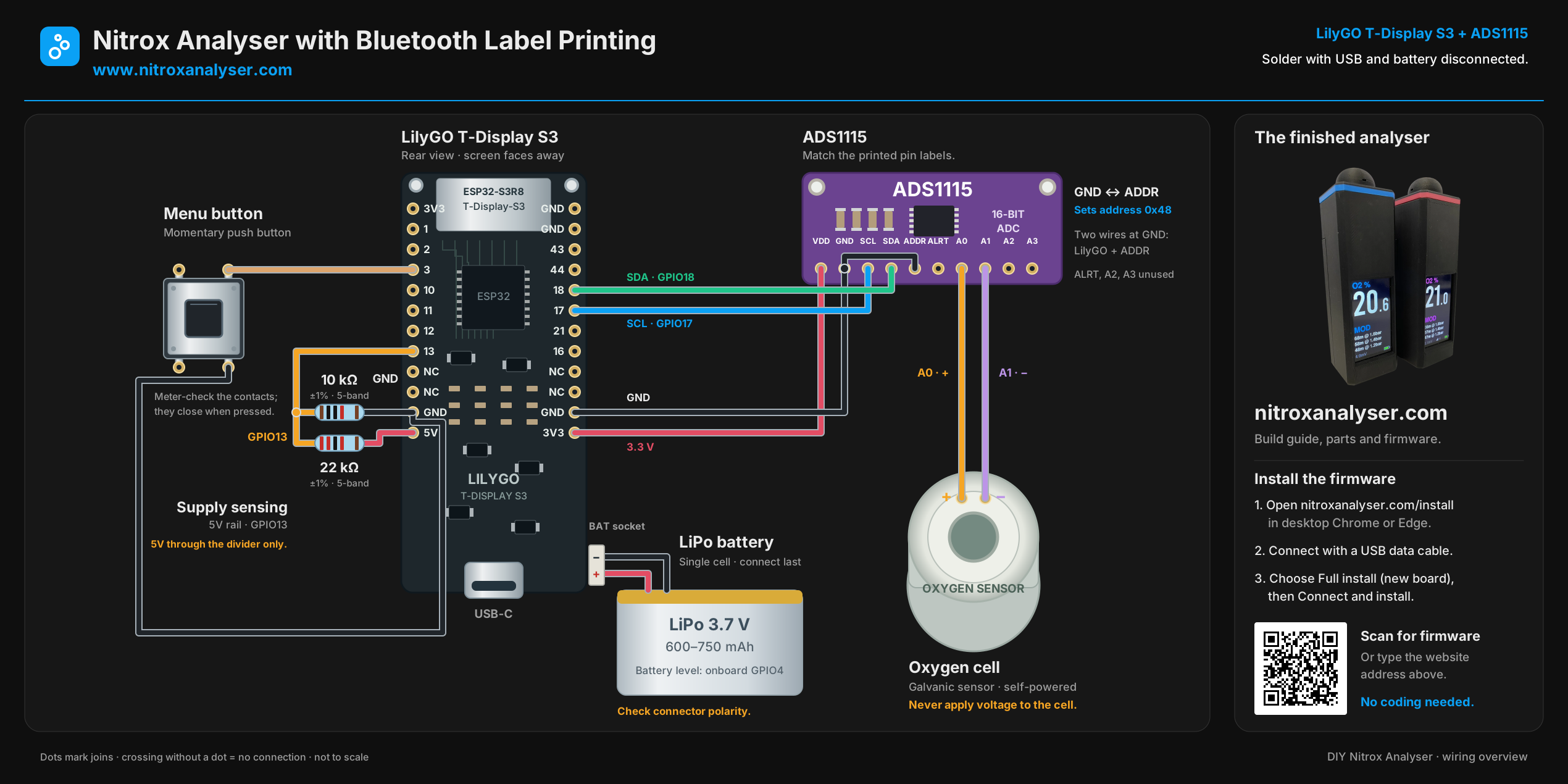
Complete wiring diagram
 Nitrox AnalyserBluetooth Label Printingwww.nitroxanalyser.com
Build it, one connection at a time
Nitrox Analyser
with Bluetooth
Label Printing
Build it step by step
Step-by-step assembly manual
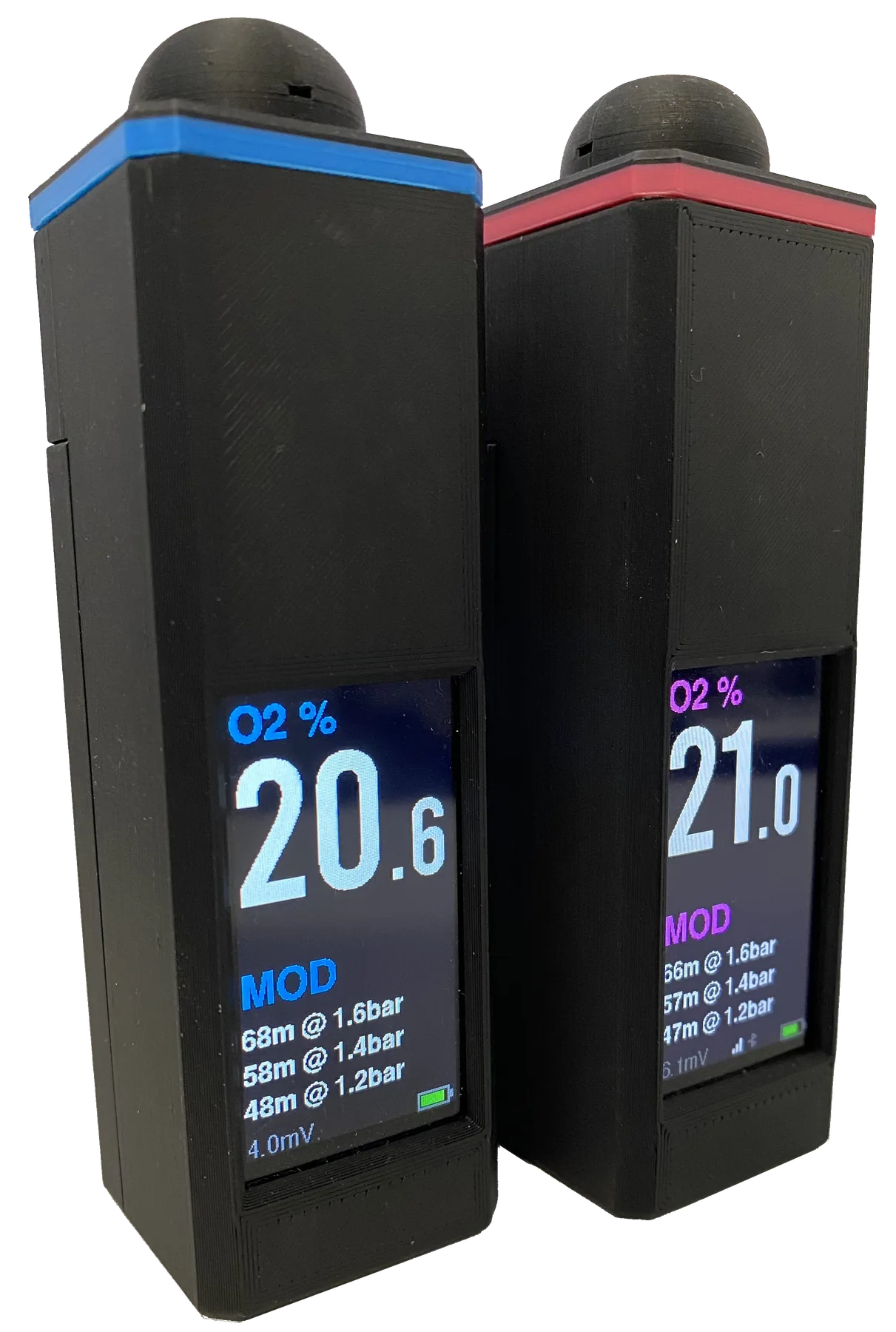
Follow the numbered steps in order. Each wiring stage uses the same board orientation and routes as the complete wiring drawing.
Nitrox AnalyserBluetooth Label Printingwww.nitroxanalyser.comStep 1 of 11
Lay out the parts
Get everything ready and check the fit before making permanent connections.
- Lay out one LilyGO T-Display S3 without fitted headers, one ADS1115 analogue-to-digital converter (ADC), a galvanic oxygen cell with its matching connector, and a momentary push button (ideally 1.5 mm high).
- Find one 22 kΩ and one 10 kΩ resistor, a single-cell 3.7 V LiPo (600-750 mAh, e.g. LP852040) with the matching 1.25 mm plug, and thin insulated hookup wire. Check the exact parts in the parts list.
- Print the housing from the linked housing files. Have the specified M2 screws/inserts and 12x 5 × 3 mm magnets (5 mm diameter, 3 mm thick) ready. Dry-fit the boards, cell, button and battery; leave everything unpowered.
- Prepare a fine soldering iron, solder, cutters, heat-shrink, a multimeter and a USB data cable. Use wire long enough to reach comfortably, with a little slack for opening the case.
- Use the full wiring diagram as your overview. The LilyGO is shown from the rear: the screen faces away. Board shapes and the battery socket position are illustrative; follow the printed pin names.
Check before continuing
The boards match this guide and the housing fits. Keep USB and battery disconnected throughout steps 1-6.
Nitrox AnalyserBluetooth Label Printingwww.nitroxanalyser.comStep 2 of 11
Start wiring the ADC
The ADS1115 analogue-to-digital converter (ADC) measures the oxygen cell's tiny voltage. Start by wiring its 3.3 V supply and ground connections to the LilyGO.
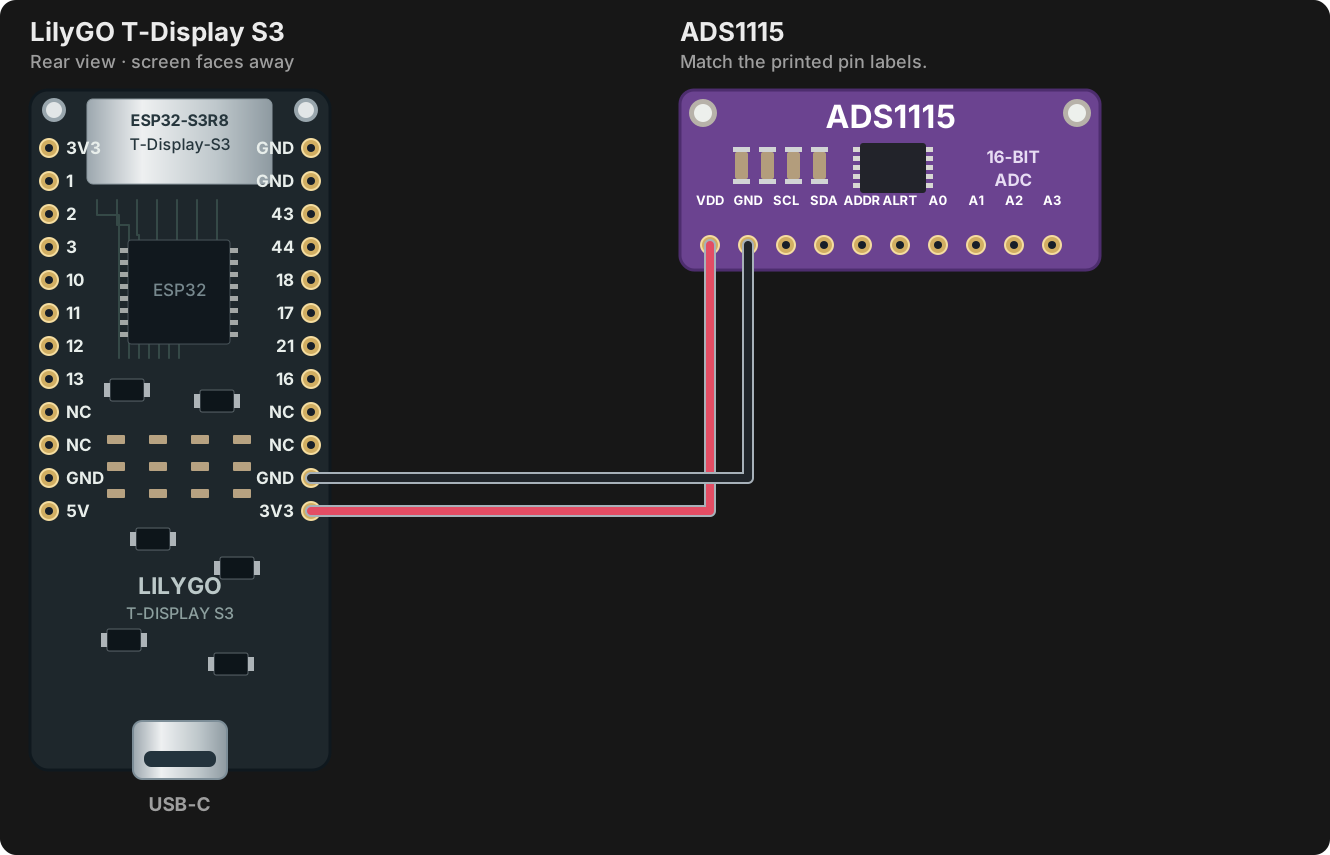
| Connect from | Connect to |
|---|---|
| LilyGO 3V3 | ADS1115 VDD |
| LilyGO GND | ADS1115 GND |
- Cut, strip and tin the two wires. Solder one at a time, checking each pad name before soldering.
- Leave room at the ADS1115 GND pad for the short address wire in the next step.
Check before continuing
VDD goes to 3V3, GND goes to GND, and no solder bridges touch adjacent pads.
Nitrox AnalyserBluetooth Label Printingwww.nitroxanalyser.comStep 3 of 11
Add the address and data wires
Two data wires let the LilyGO read the ADS1115. The short ground jumper selects address 0x48, which this firmware uses.
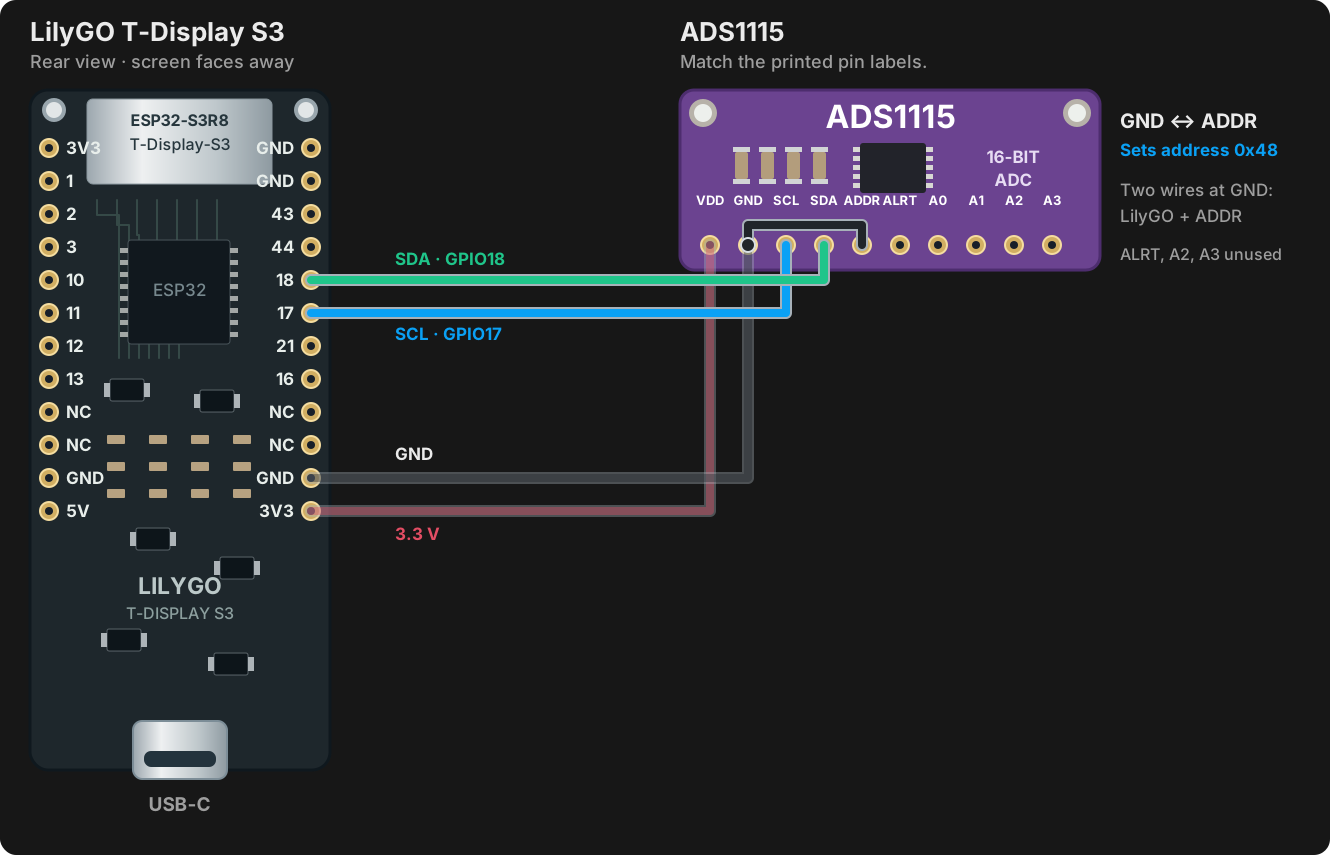
| Connect from | Connect to |
|---|---|
| LilyGO GPIO17 | ADS1115 SCL |
| LilyGO GPIO18 | ADS1115 SDA |
| ADS1115 ADDR | ADS1115 GND |
- Solder the SCL and SDA wires. Use the pin numbers printed on the LilyGO, rather than counting holes.
- Make a short jumper from ADDR to GND on the ADS1115. There are now two wires on the ADS GND pad: the LilyGO ground wire and this jumper.
Check before continuing
SCL is on 17, SDA is on 18, and ADDR is joined to GND. Leave ALRT, A2 and A3 unconnected.
Nitrox AnalyserBluetooth Label Printingwww.nitroxanalyser.comStep 4 of 11
Wire the momentary button
Pressing the button joins GPIO3 to ground. Releasing it opens the connection again.
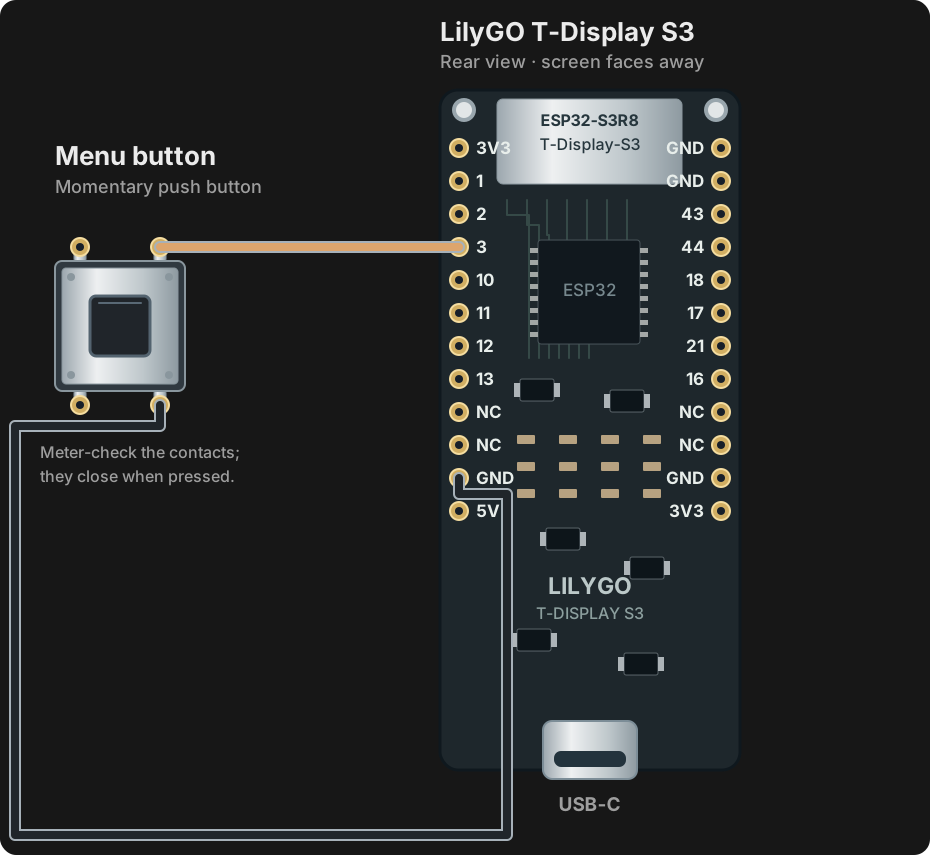
| Connect from | Connect to |
|---|---|
| LilyGO GPIO3 | One button contact group |
| LilyGO GND | The other button contact group |
- Use the multimeter's continuity setting to find two legs that are open when released and connected only while pressed. On a four-leg switch, some legs are already connected internally.
- Solder GPIO3 to one of those contacts. Solder a separate ground lead from the other contact to LilyGO GND, as shown.
Check before continuing
Across the two wires, the meter changes from open to continuity only when you press the button.
Nitrox AnalyserBluetooth Label Printingwww.nitroxanalyser.comStep 5 of 11
Make the supply-sensing divider
The two resistors reduce the supply voltage to a level GPIO13 can measure. This helps the firmware recognise USB power.
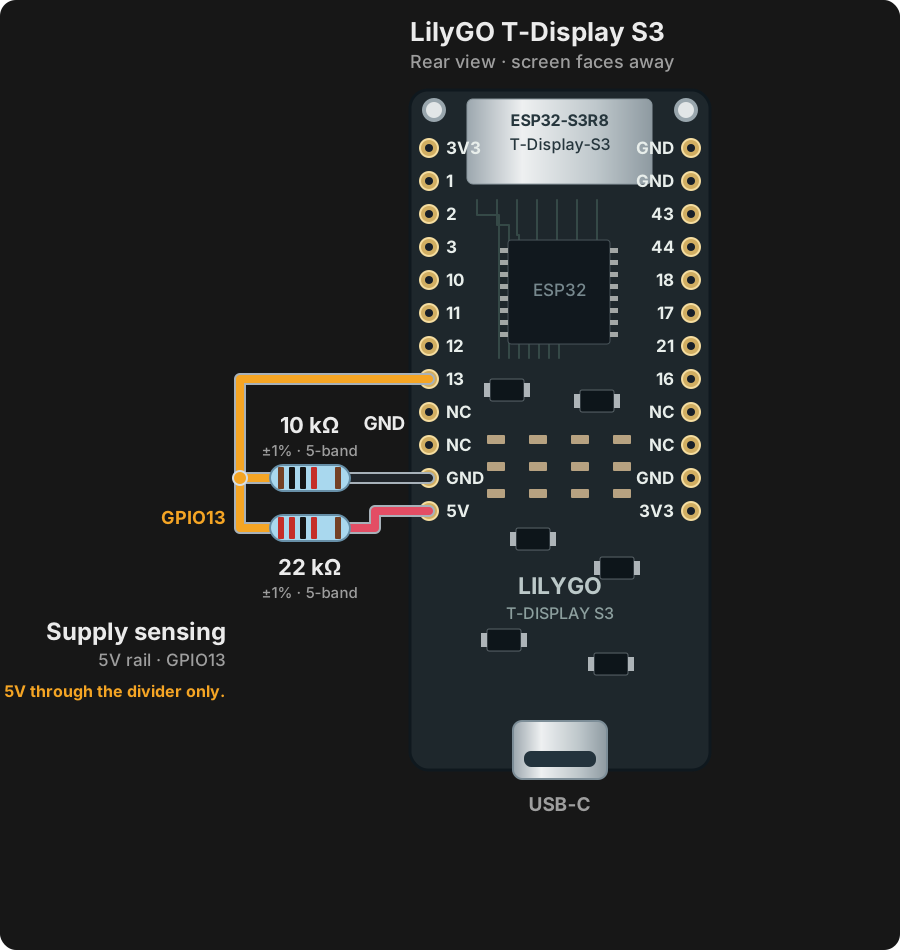
| Connect from | Connect to |
|---|---|
| LilyGO 5V | 22 kΩ outer end |
| 22 kΩ / 10 kΩ joined ends | LilyGO GPIO13 |
| 10 kΩ outer end | LilyGO GND |
- Identify the blue, five-band resistors: 22 kΩ = red · red · black · red · brown; 10 kΩ = brown · black · black · red · brown. The last brown band means ±1%. Measure them before fitting if unsure.
- Join one end of each resistor and attach the orange GPIO13 wire to that same joint. Connect the free 22 kΩ end to 5V and the free 10 kΩ end to GND. Insulate exposed joints.
Check before continuing
22 kΩ is on the 5V side, 10 kΩ is on the GND side, and GPIO13 goes to their shared junction.
Nitrox AnalyserBluetooth Label Printingwww.nitroxanalyser.comStep 6 of 11
Connect the oxygen cell
The cell makes a small voltage of its own. The ADS1115 measures the difference between its positive and negative terminals.
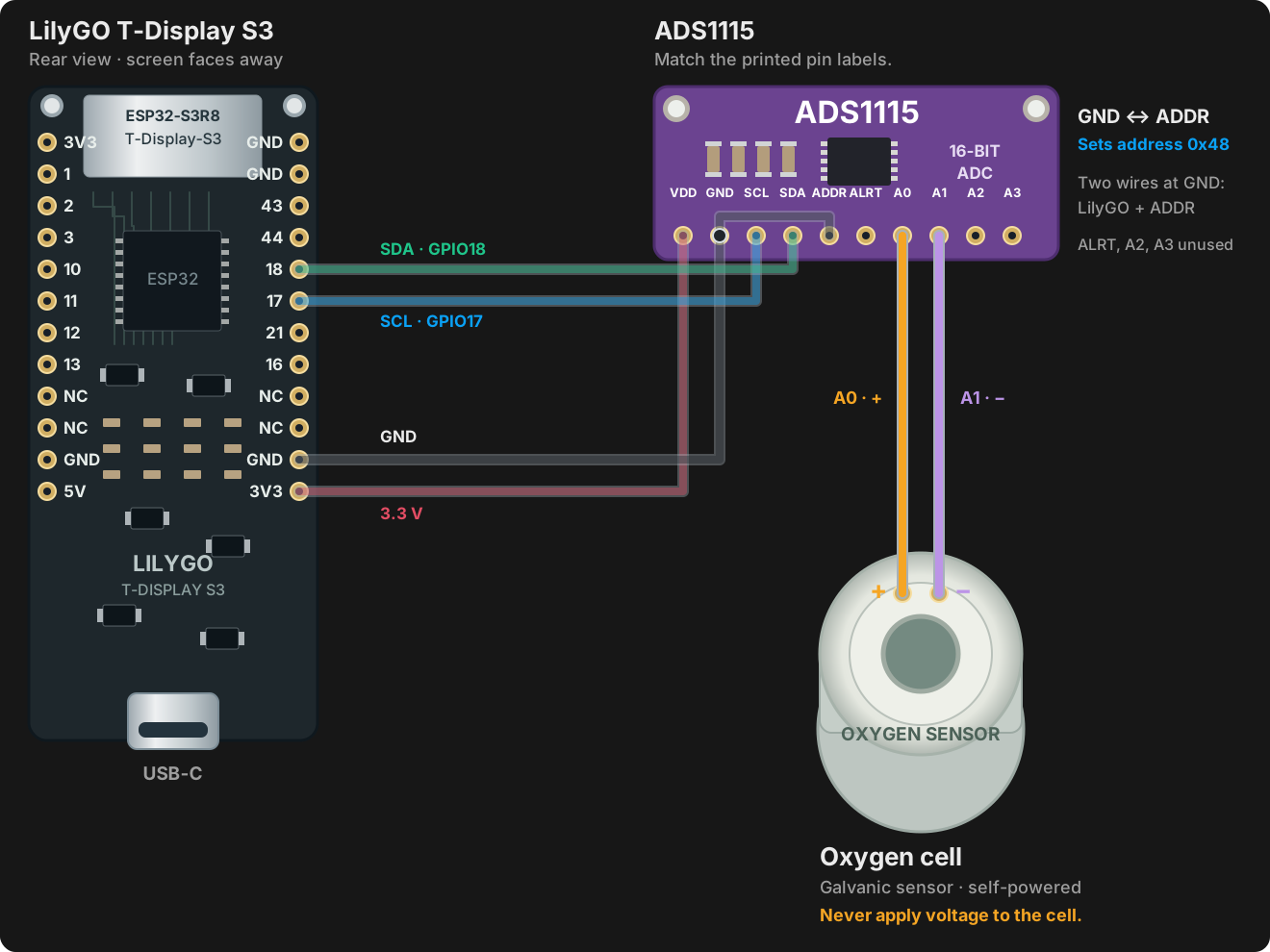
| Connect from | Connect to |
|---|---|
| Cell positive (+) | ADS1115 A0 |
| Cell negative (-) | ADS1115 A1 |
- Identify the cell connector's positive and negative terminals using the cell maker's information. Connector colours and shapes can vary.
- Wire the positive lead to A0 and the negative lead to A1. Keep the pair short, route it together, and provide strain relief so the connector cannot pull on the solder joints.
Check before continuing
Polarity is correct, A0/A1 are not swapped, and neither cell lead touches 3V3 or 5V.
Nitrox AnalyserBluetooth Label Printingwww.nitroxanalyser.comStep 7 of 11
Inspect, then install the firmware
Check the complete circuit before powering it for the first time. Leave the battery unplugged for this USB test.
- With all power disconnected, compare every connection with the complete wiring diagram. Inspect for stray strands, solder bridges and exposed joints. Check for an unintended short between a supply rail and GND with the multimeter.
- Open www.nitroxanalyser.com/install in desktop Chrome or Edge. Select the Nitrox target and Full install for a new board.
- Connect a USB data cable. Choose Connect and install, select the board's serial port and follow the installer. Keep the cable connected until it finishes.
- Check that the analyser starts and the screen is readable. If anything becomes hot, smells unusual or repeatedly resets, unplug USB and inspect the wiring before trying again. If no port appears, try a known data cable and a direct computer USB port.
Check before continuing
Firmware installation completes, the screen starts normally, and there is no abnormal heating. Do not close the housing yet.
Nitrox AnalyserBluetooth Label Printingwww.nitroxanalyser.comStep 8 of 11
Connect the battery last
The battery plugs into the LilyGO's battery socket. The board already contains the battery-voltage measuring circuit.
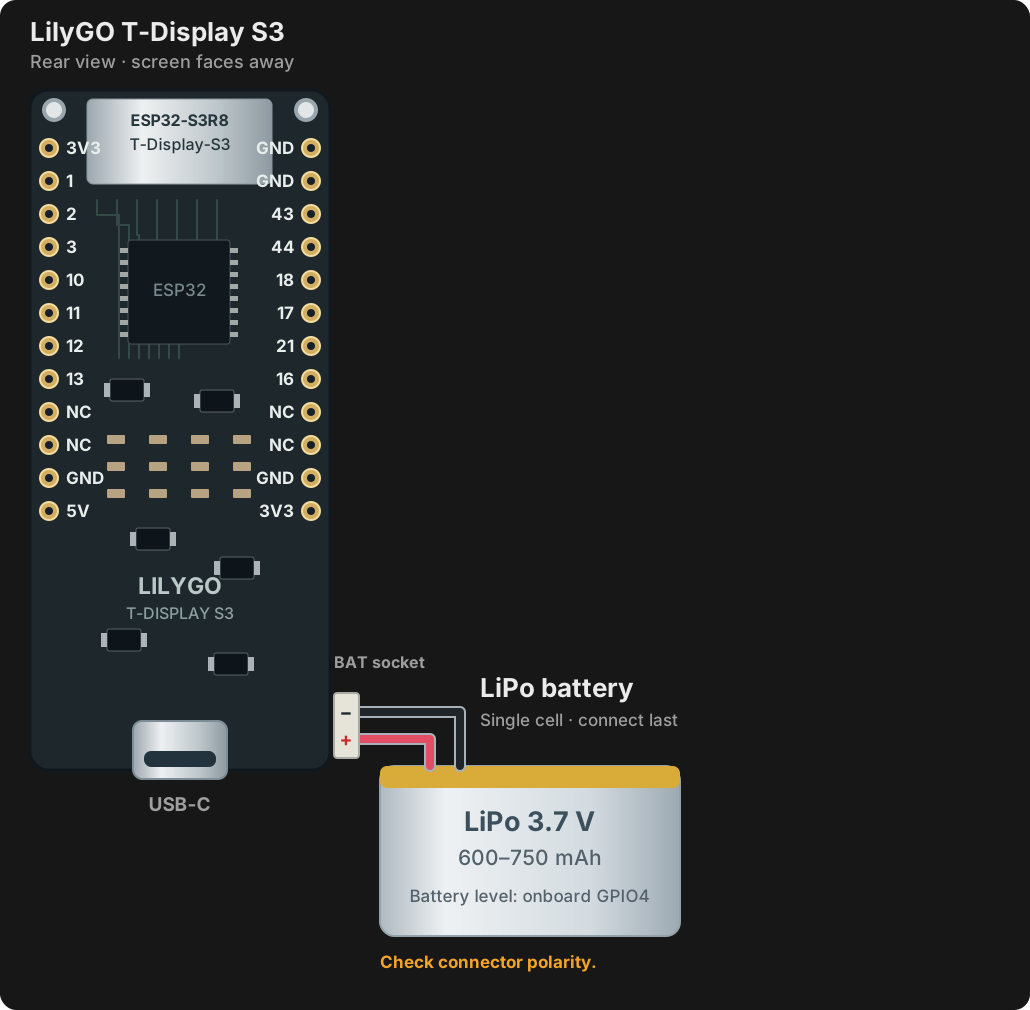
- Unplug USB. Use only a suitable single-cell 3.7 V LiPo and the matching connector; this is not a multi-cell battery input.
- Check the battery plug's positive and negative pins with the multimeter and compare them with the board's battery connector markings/manufacturer schematic. A plug that fits can still be wired backwards.
- Insert the plug gently, keeping metal tools away from the contacts. Confirm that the analyser starts on battery power. Never squeeze, puncture or trap the battery.
Check before continuing
Battery polarity matches the board, the unit runs without USB, and the battery has room without pressure from the case or screws.
Nitrox AnalyserBluetooth Label Printingwww.nitroxanalyser.comStep 9 of 11
Fit the case and tidy the wiring
Secure the parts while keeping the sensor open to gas and the wiring clear of moving or sharp edges.
- Disconnect USB and unplug the battery before fitting the electronics. Follow the housing model's fitting instructions for inserts, magnets and screws; trial-fit magnet polarity before fixing them.
- Seat the screen, button and oxygen cell in their openings. Keep the cell's gas opening and the housing's gas path clear. Secure the boards so they cannot move or short against loose metal parts.
- Route wires around the edges with gentle bends and a little service slack. Insulate bare resistor joints. Keep the cell leads together and give the connector strain relief.
- Check screw lengths and cable clearance. No screw, insert or case edge should press on the battery or pinch a wire. Reconnect the battery only after this inspection.
- Leave the lid accessible for the first checks on the next page. After successful checks, fit it carefully and confirm the button still moves freely.
Check before continuing
The battery is secure without pressure, wires are not pinched, the button clicks freely, and the sensor's gas path is clear.
Nitrox AnalyserBluetooth Label Printingwww.nitroxanalyser.comStep 10 of 11
Set up and check the first reading
Calibration tells the analyser what clean air looks like. An independent check confirms that the finished build measures sensibly.
- Prepare clean airTurn the analyser on and let the cell and temperature settle in clean ambient air. Keep it away from breath and oxygen-enriched gas. See the calibration guide for altitude and unusual conditions.
- Open the menuHold about 2.5 seconds → release. Short presses move between items.
- Select CalibrateOnly when the cell is ready, highlight Calibrate and make a new hold of about 2 seconds. This immediately stores the air calibration with a 21.0% target.
- Verify the readingCheck for a stable air reading and sensible cell millivolts. Compare a known gas with a trusted, independently verified analyser before relying on the build for diving. If readings disagree or drift, stop and find the cause; repeated calibration is not a repair.
- Open browser settingsJoin NitroxAnalyser-XXXX Wi-Fi. Find its password in Menu → WiFi (default 12345678). Open http://192.168.4.1/ and stay connected even if your phone reports no internet.
Check before continuing
The reading is stable, calibration succeeds, and the known-gas comparison agrees within your accepted procedure. Only then finish closing the case.
Nitrox AnalyserBluetooth Label Printingwww.nitroxanalyser.comStep 11 of 11
Set up Bluetooth label printing
The optional printing feature transfers a checked reading to a cylinder label. It needs a supported printer and an activated printing licence.
- Prepare the printerCharge and switch on a supported printer, such as the Niimbot B1, and load the correct labels. Check the website for current printer and label support.
- Save the printerOpen the analyser web interface. Under Print, scan, select the printer and save it. Activate your printing licence there if needed.
- Check label settingsCheck name, date/time and oxygen/ppO₂ settings. Check the date again after restarting.
- Print and compareWith a stable, checked gas reading on the main screen, double-press the button. Compare the first label with the displayed reading before putting it on a cylinder.
Check before continuing
The displayed reading and printed label agree. Keep this manual with the analyser for future maintenance.